As we work along with the javascript framework (vue / react) we will realize that there are custom components in our application that you might need to re-use in different applications or sometimes we have to share with the community.
Let’s see how to publish our first component into npm and use it in our project.
In my previous post, I explain how to create a vuejs plugin and use it in our project. In this post I am going to use the same project to publish in npm
please refer to my previous post here if you miss it
Configuring Package.json
In the last blog, I explain how to create and use the library/plugin. Lets recap important things to do before publishing into npm
After we build library/plugin files into dist folder, we have to update our package.json
Let us add the main entry point in packge.json file
"main": "./dist/lib.umd.min.js",Now let’s whitelist what are the files needed when someone is using them inside their node_modules. Here we need to include only dist folder from our project.
"files": [ "dist/*"],Pushing compiled source code is the right way to publish in NPM. Users usually won’t edit this code. if they want to make changes, they can fork from version control systems (like Github).
In case you want to include all files, we add like below
"files": [
  "dist/*",
  "src/*",
  "folder/*",
],
Let’s add additional details like author details and license also into the package.json
{
  "name": "sb-vue-component-library",
  "version": "0.1.0",
  "private": false,
  "license": "MIT",
  "author": {
    "name" : "Shabeeb K",
    "email" : "mail@shabeebk.com",
    "url" : "http://shabeebk.com/"
  },
  "main": "./dist/lib.umd.min.js",
  "files": [ "dist/*"],
  "scripts": {
    "serve": "vue-cli-service serve",
    "build": "vue-cli-service build",
    "lint": "vue-cli-service lint",
    "build:lib": "vue-cli-service build --name lib --target lib --dest dist src/lib-setup.js"
  },
  "dependencies": {
    "core-js": "^3.8.3",
    "vue": "^2.6.14"
  },
  "devDependencies": {
    "@babel/core": "^7.12.16",
    "@babel/eslint-parser": "^7.12.16",
    "@vue/cli-plugin-babel": "~5.0.0",
    "@vue/cli-plugin-eslint": "~5.0.0",
    "@vue/cli-service": "~5.0.0",
    "eslint": "^7.32.0",
    "eslint-plugin-vue": "^8.0.3",
    "vue-template-compiler": "^2.6.14"
  },
  "peerDependencies": {
    "vue": "^2.6.14"
  }
}
What are these fields if you wonder
- name: Name of the component
- version: the version number of our plugin/library. You will have to increment this number every time you publish an update for your package. usually we follow semantic versioning
private: This means your package is public (i.e. everyone is able to see and install it).- license: license for our package
- author: author details
- main: The primary entry point to our plugin.
- files: specifies which files should be published on NPM.
For more details please refer npmjs
Add license file
In GitHub, it’s easy to add a license, If you are using MIT license,
Click on add file in GitHub and name it as License.md

Then we can see choose from the template. Here i am using MIT license

Commit changes to Github.
Publish to npm
If you don’t have an account in npmjs.com. create one.
Lets login from the command line
npm loginThis will ask you to enter the user name and password of the npm account. (TFA if you enable it ).
once login it will show message
Logged in as username on https://registry.npmjs.org/.Let us do a build
npm run build:libnow we can publish to npm
npm publishI faced some issue since my component name is already existing in vue, so I updated component name
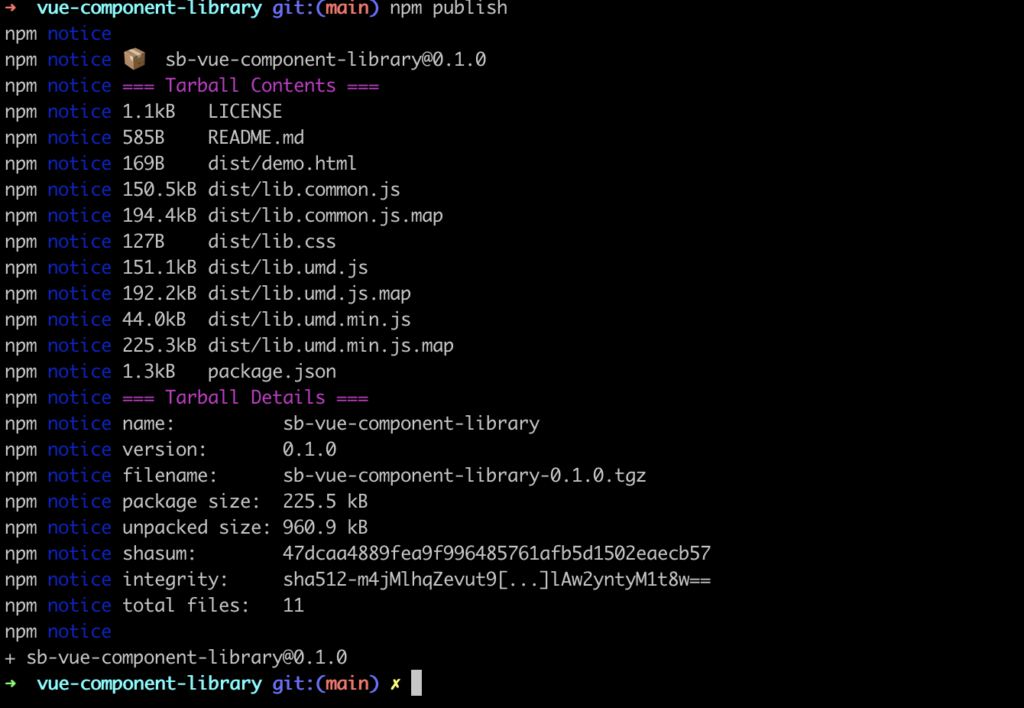
It will appear in npmjs immediately
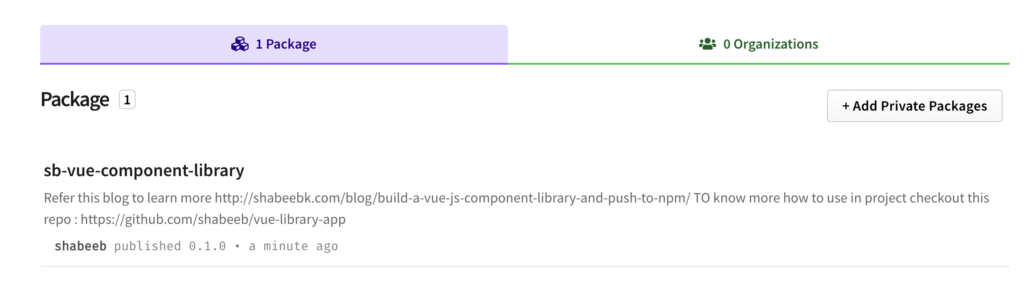
Yey, we did it :). Now anyone can use this package in their project
Using package
To use package in the project
npm install --save sb-vue-component-libraryTo use it globally , in main.js
import myButton from "sb-vue-component-library";
Vue.use(myButton);
To use it inside a component,
import myButton from "sb-vue-component-library";Thats it, Now we publish our component into npm and use it in different project
2,053 total views, 1 views today